# Reset a forgotten password
If you have lost your password and can no longer connect to the platform, you can reset it.
First, go to the platform login page and click on the link Forgotten Password?.
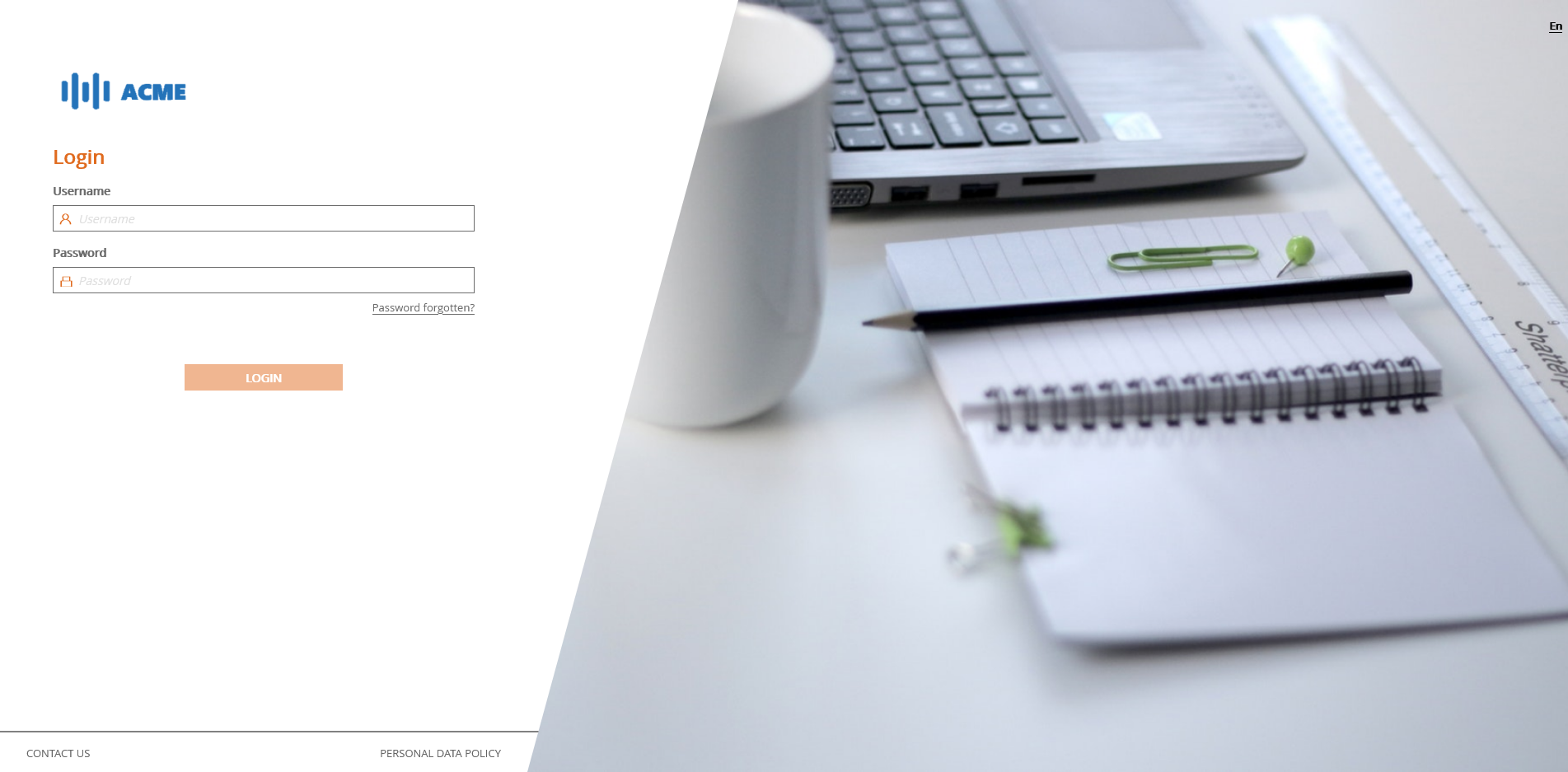
# Login page
Once on the page to recover your password, fill in your login and your email and click on SAVE.
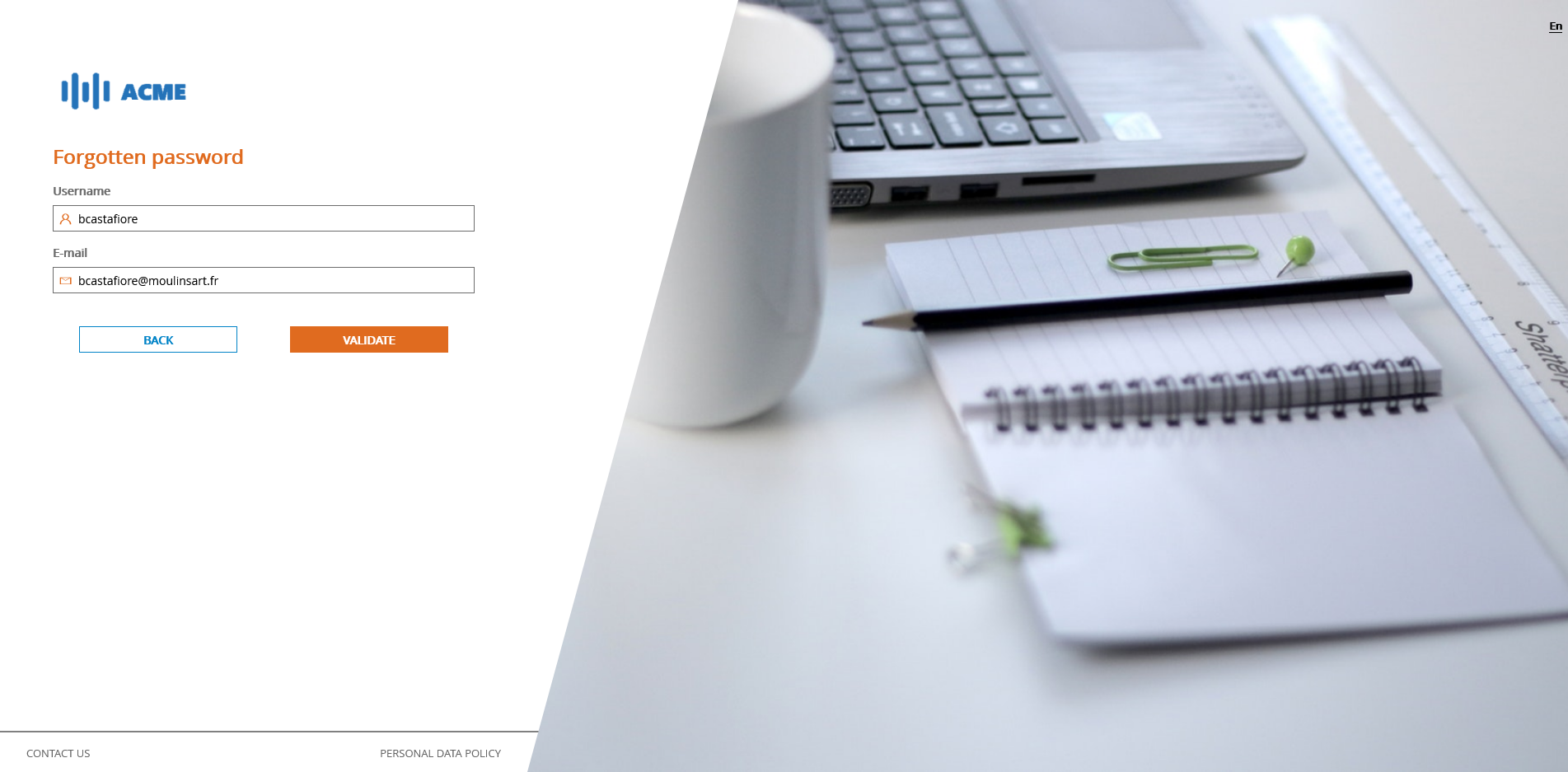
# Password recovery page
If the data entered is correct, a window will confirm that an email will be sent to you with instructions on how to reset your password.
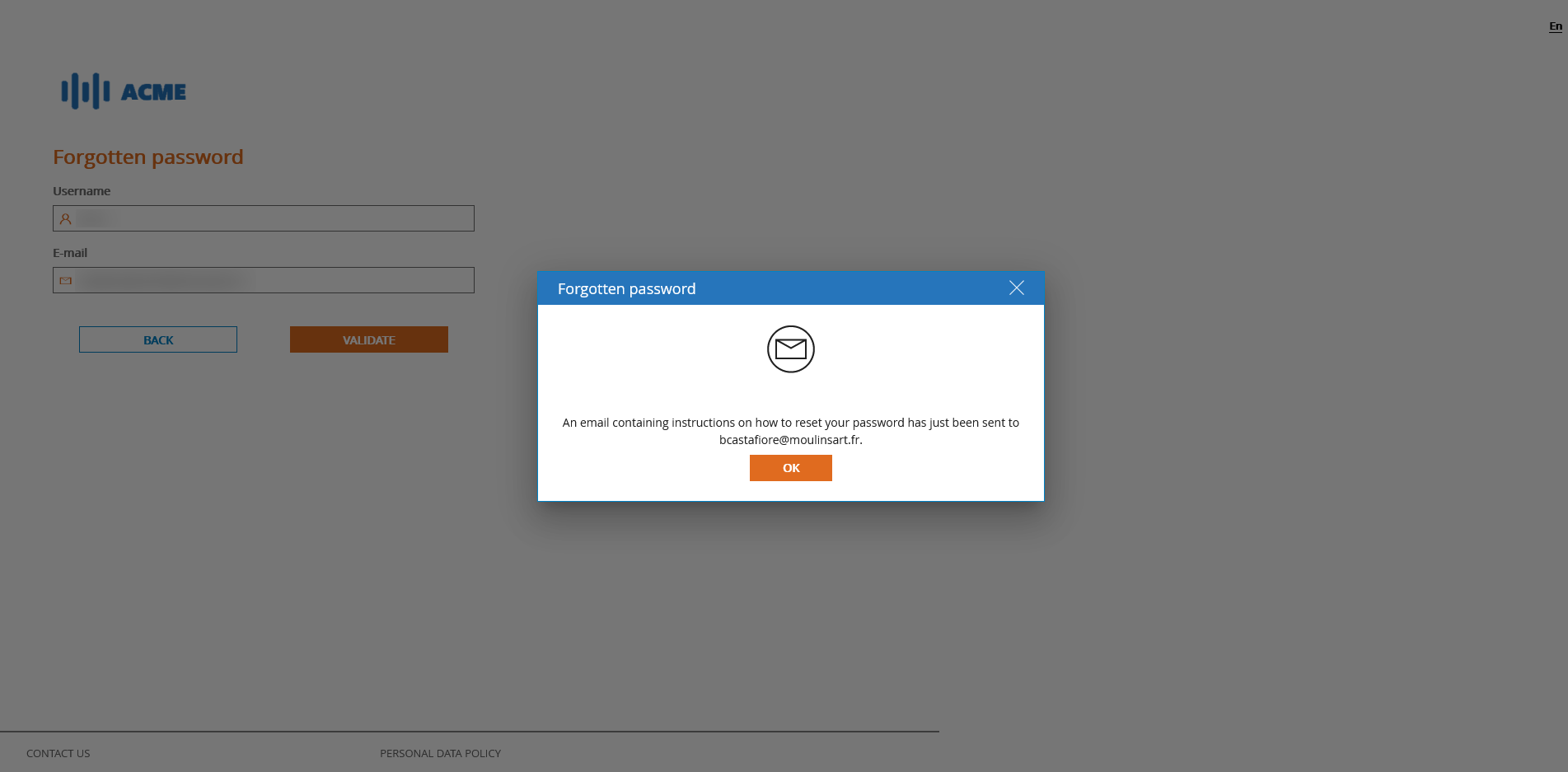
# Confirmation of sent email
You will then receive an email from which you must click on the RESET PASSWORD button to access the password reset page.
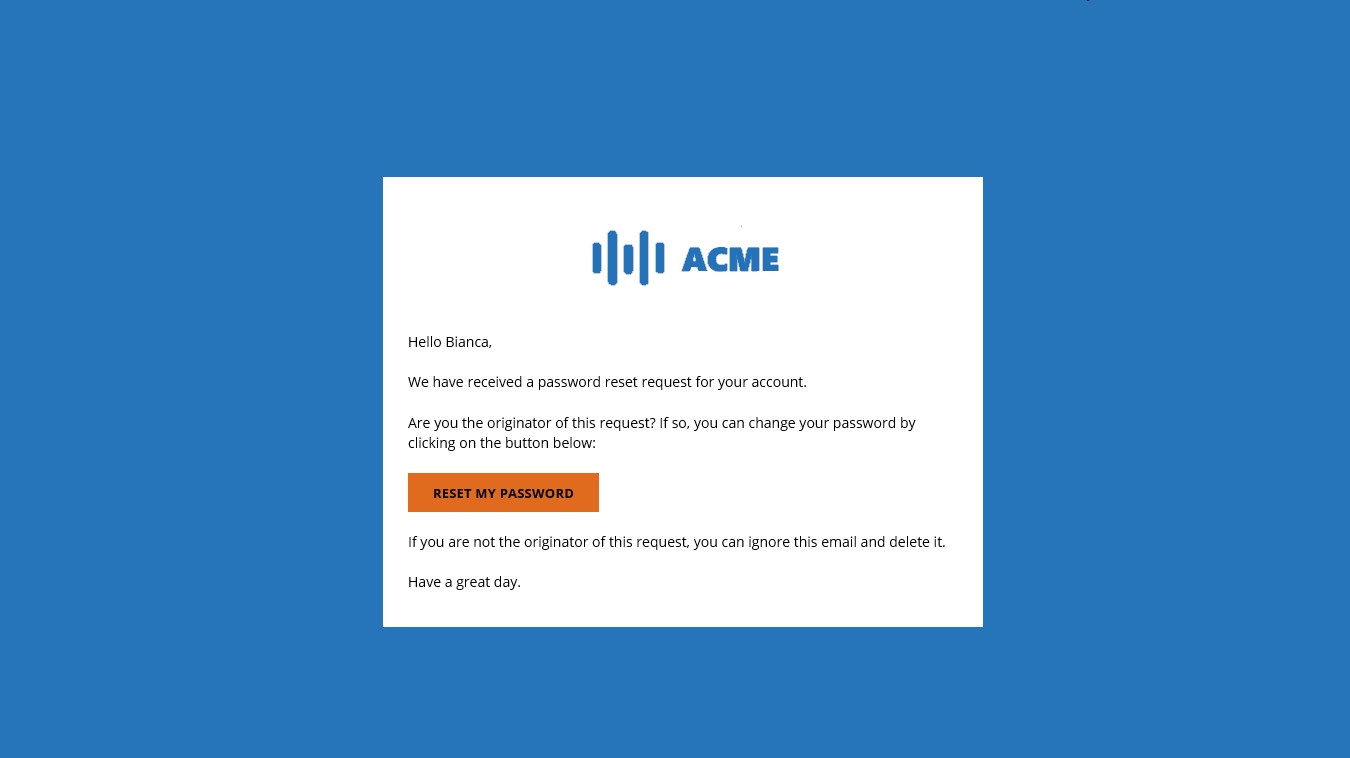
# Password reset email
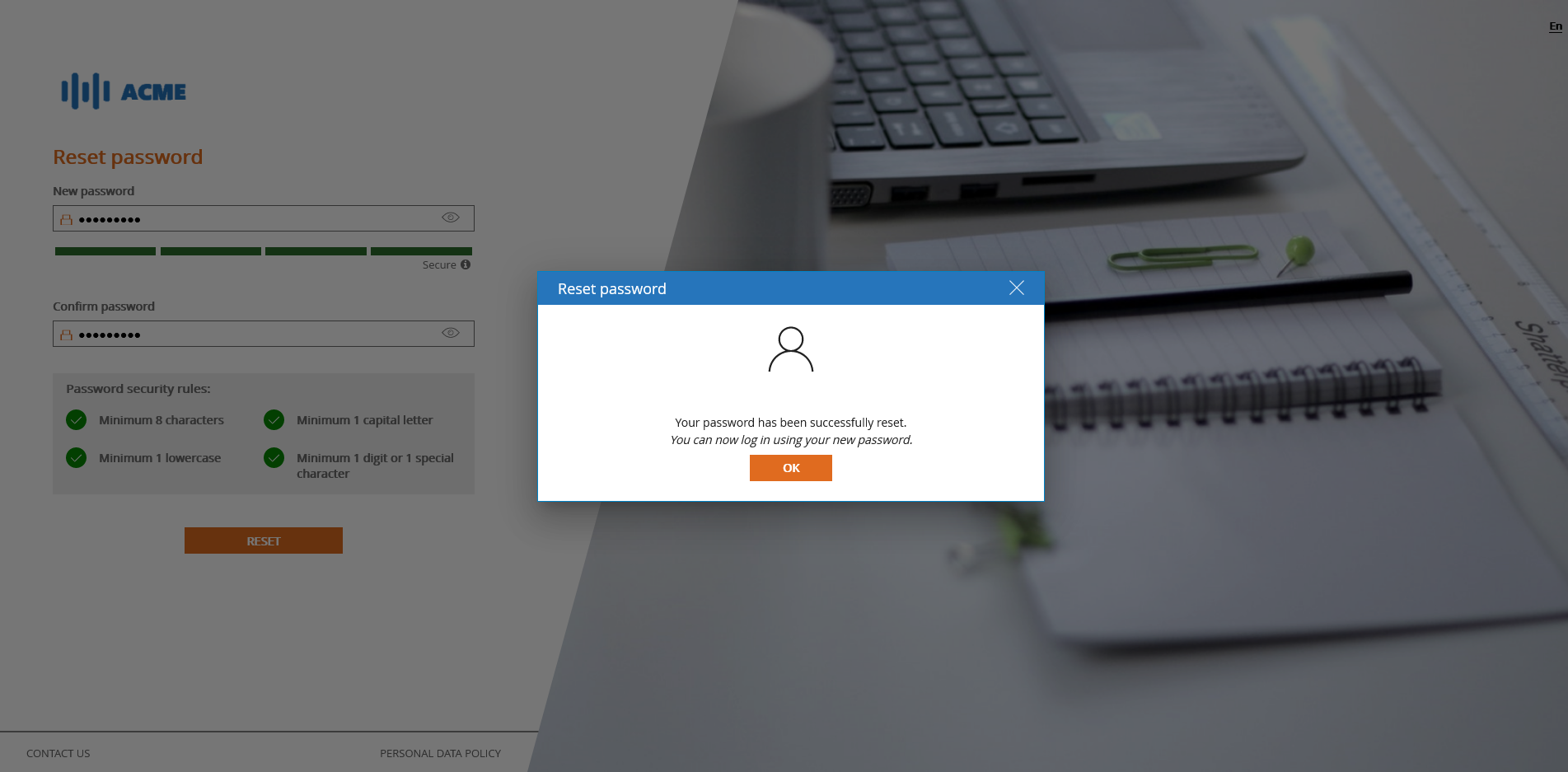
All you have to do is enter your new password and click on RESET.
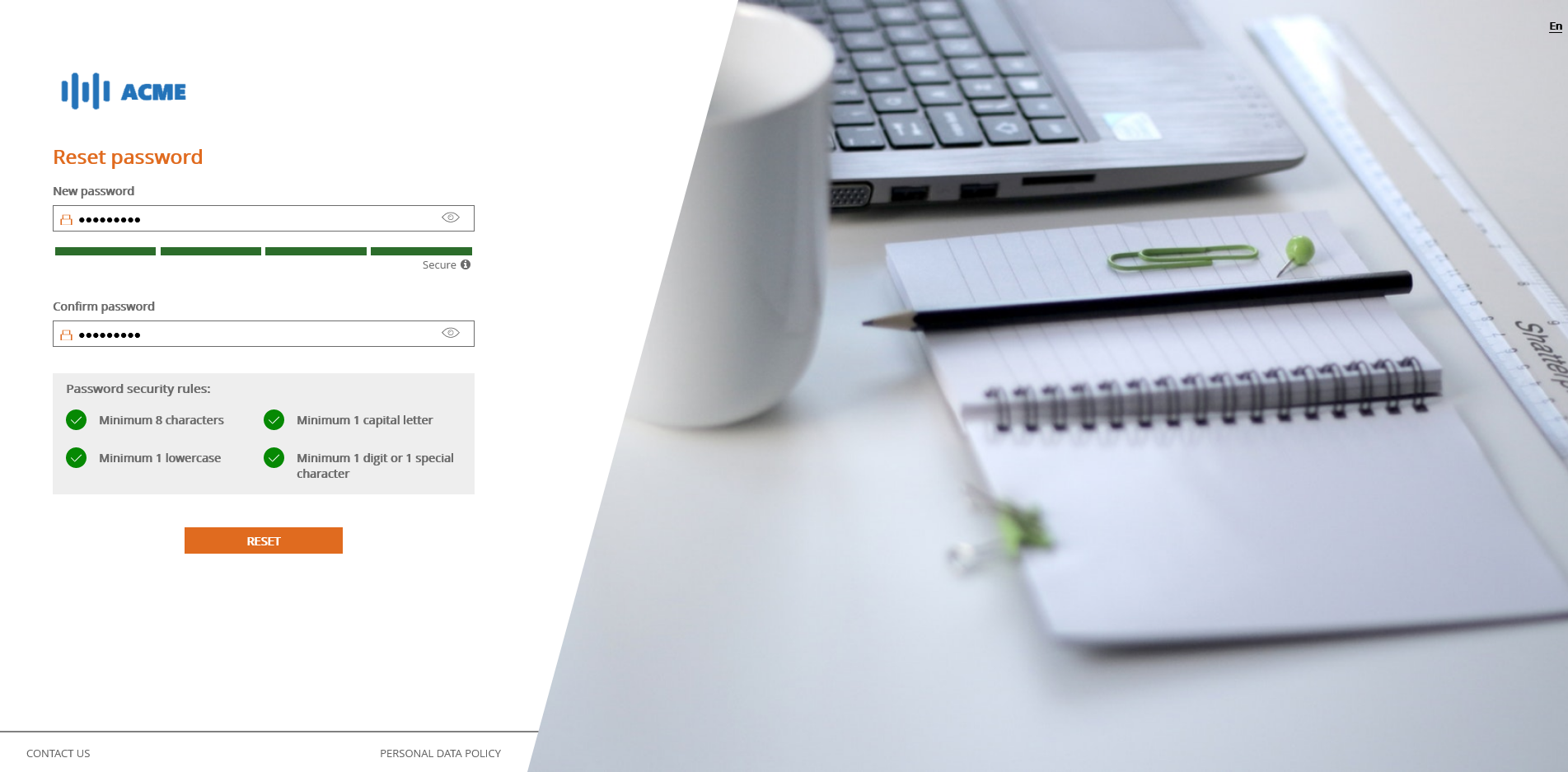
# Password reset form
Once the form is validated, a modal window will appear to confirm that your password has been reset. You can then log in to the portal using your new password.