
# Filing pay slips for a single company
💡 Reminder
The modules you have access to depend on the role assigned to you by your administrator. To be able to file documents, you must have the Deposit role activated.
# Access the single-company deposit module
✔️ Pre-requisites
To access the deposit module, you must be granted access to the concerned company.
Once connected to the platform, choose the company for which you wish to file your pay slips (See First login section). If your user account is attached to only one company, you will be automatically redirected to this company after logging in.
Once you are on the desired company page, you can access the pay slip deposit module by clicking on the DROPZONE module and then choosing the Pay slips subheading.
Depending on the subscriptions you have taken out, one or more types of documents may be available for deposit.
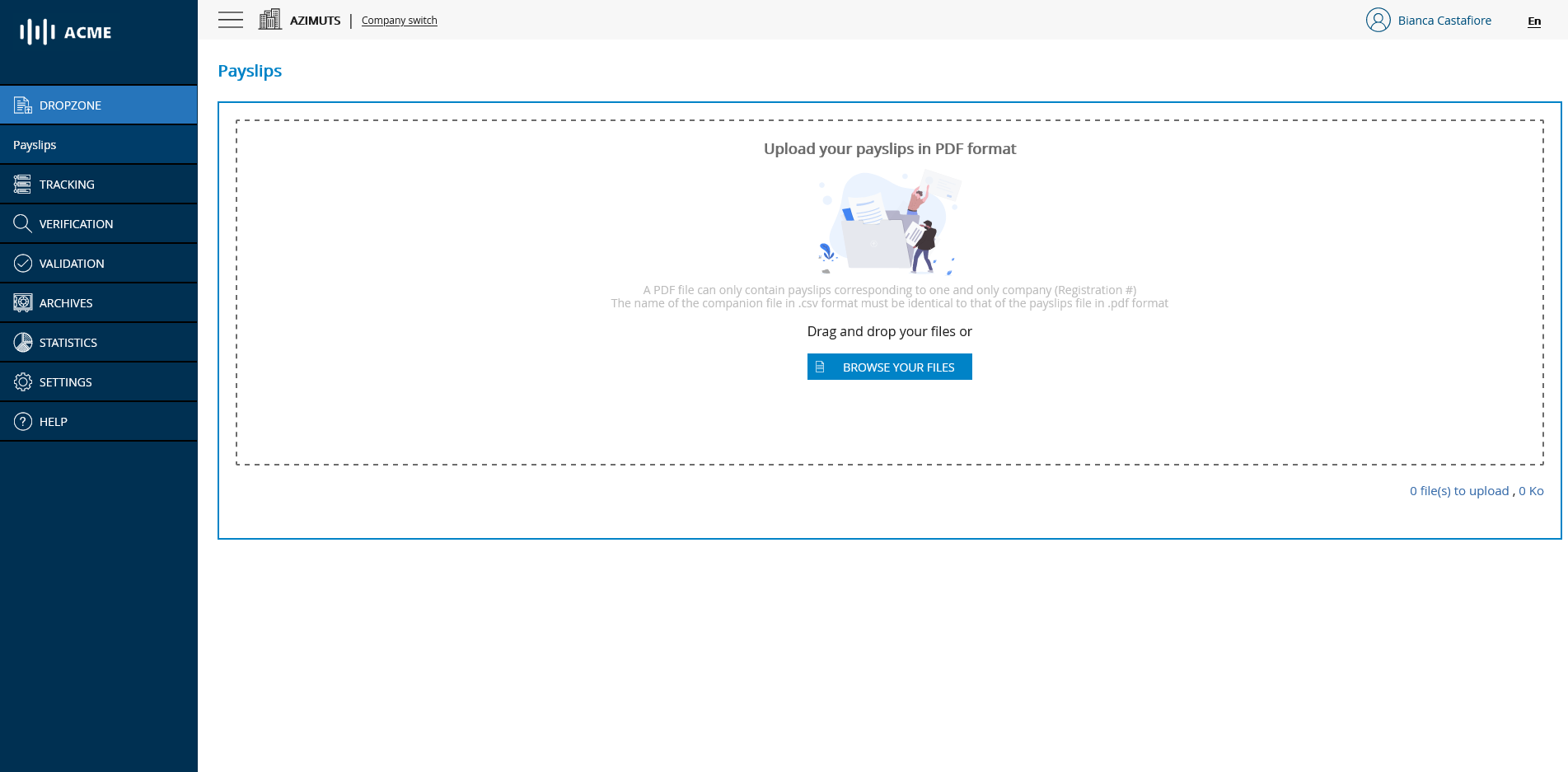
# Pay slips deposit module
# Filing pay slips
To drop files, simply click on the IMPORT YOUR FILES button or drag and drop the PDF file(s) you wish to file.
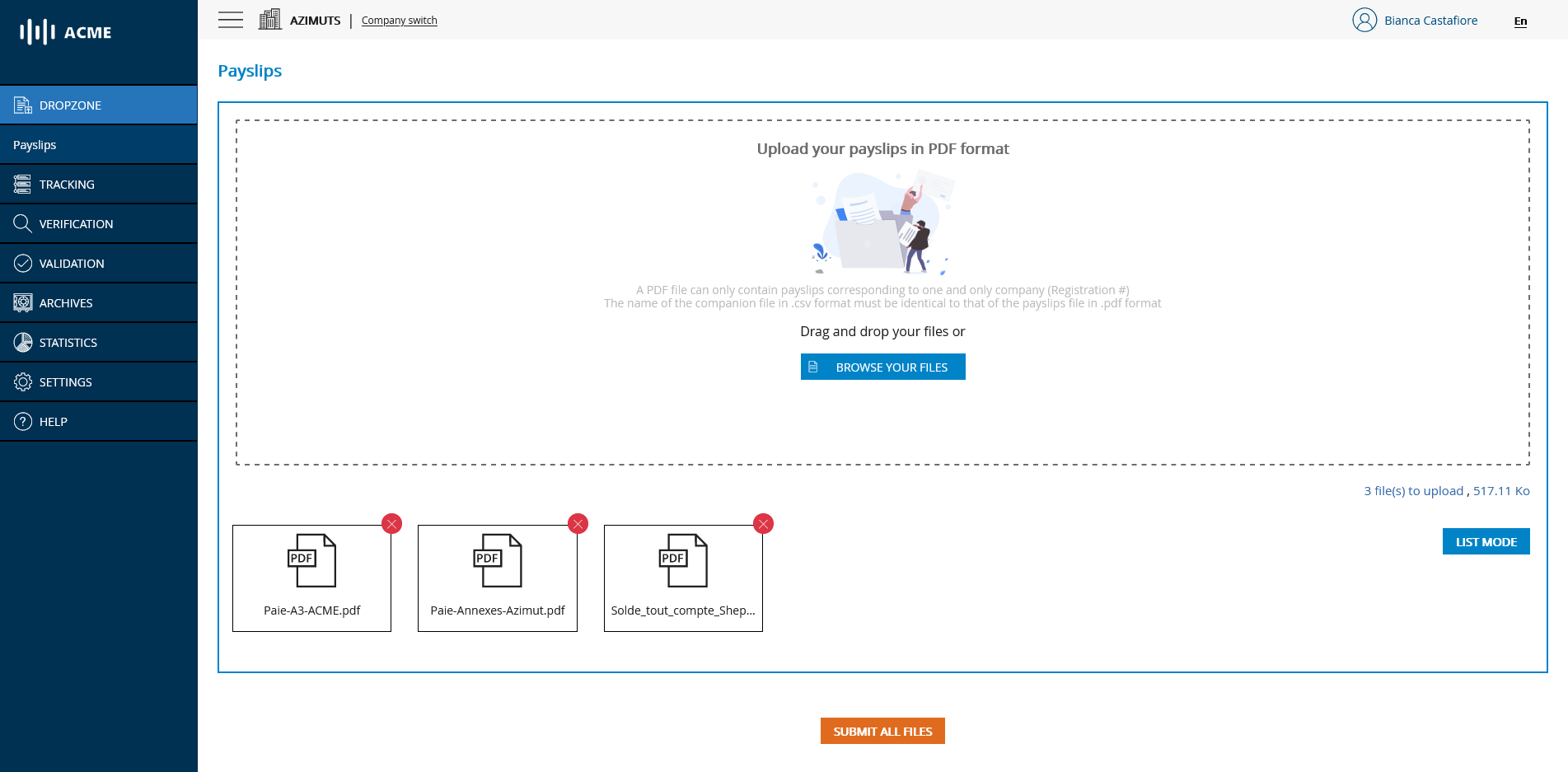
# Document filing module - adding files
💡 Reminder
If the processing of your documents requires the addition of a CSV file, upload it here too, along with the corresponding PDF files.
If necessary, you can view all the files you are about to transmit by clicking on the LIST MODE button.
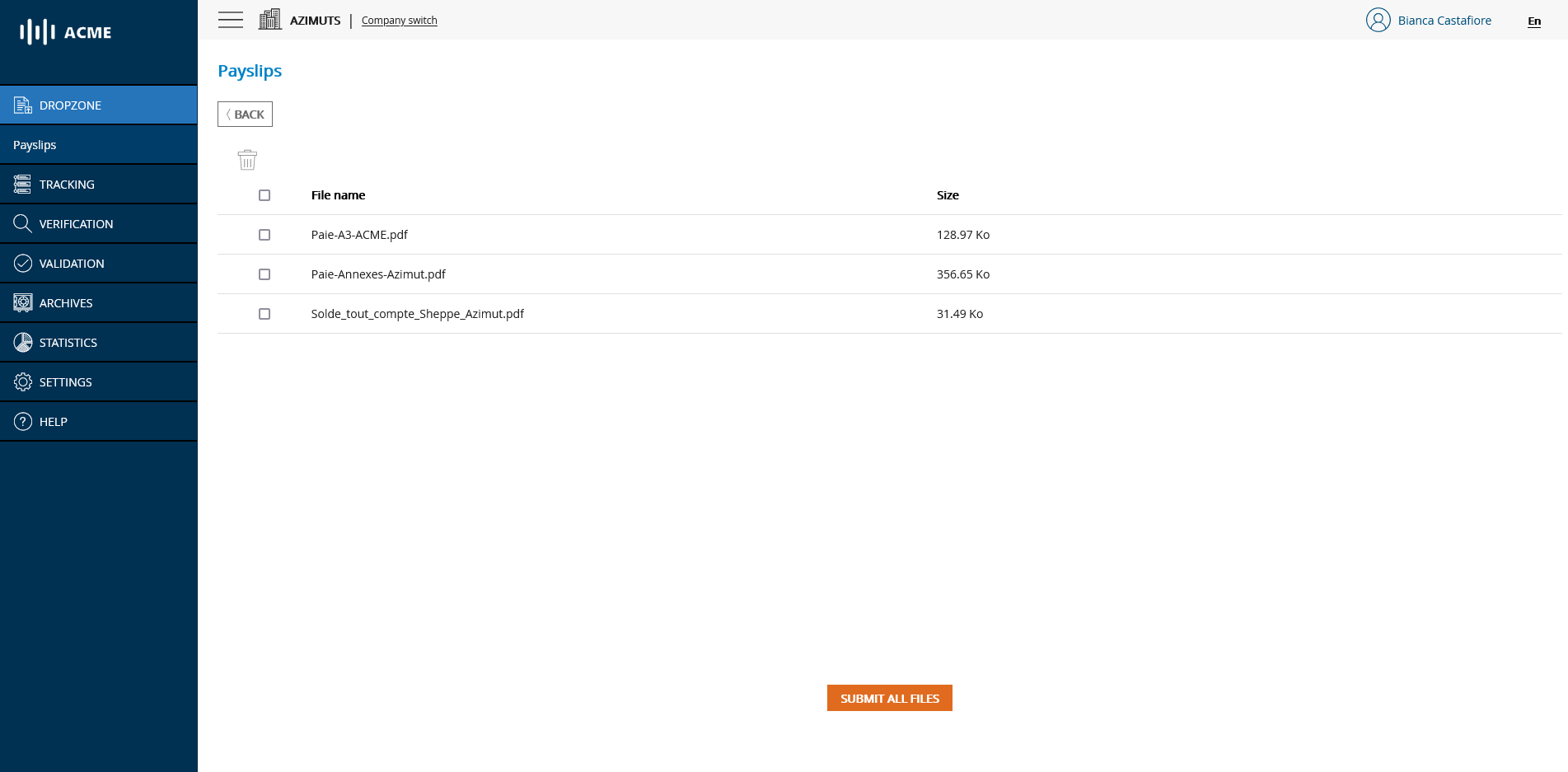
# Document filing module - list mode
Once you are ready to upload your files, click on UPLOAD ALL FILES. A transfer window will appear at the bottom right of your screen to inform you of the progress of your upload.
Once your files have been uploaded, you will be notified of the success of the upload. Your documents are now correctly handled by the platform.
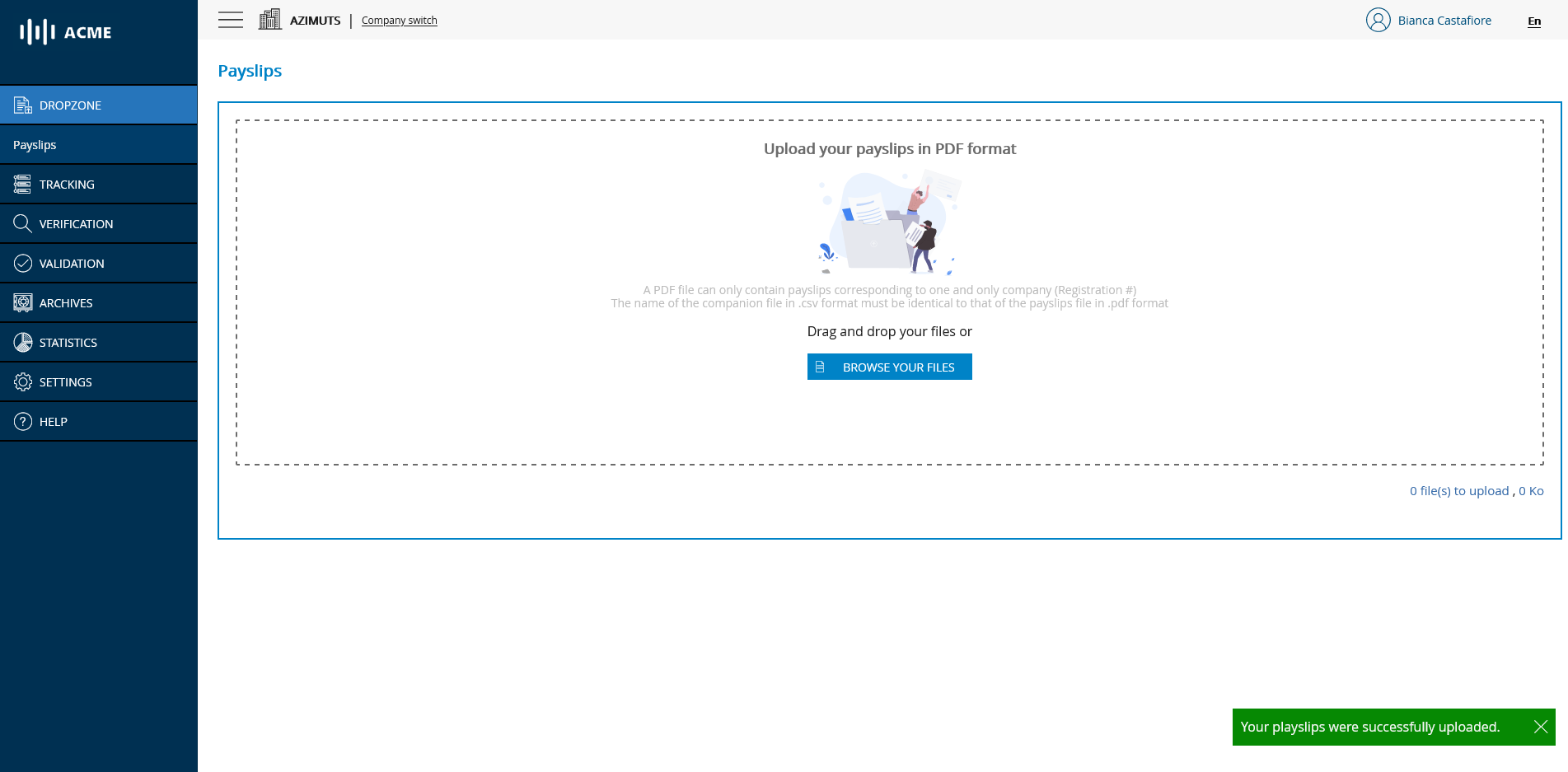
# File transfer confirmation
In case of an error during the transfer, you will be notified and will receive an email to inform you of the failure of the transfer.
To find the history of your filings, and to follow the progress of your flows, Go to the FOLLOW-UP module.
# Filing pay slips for several companies
✔️ Pre-requisites
- The multi-company deposit module must be activated to be used. To access this module, contact your administrator.
- The pay slips contained in the same PDF must all concern the same company.
- In order to be processed, the submitted pay slips must concern companies for which you have the right to file documents.
# Access the multi-company filing module
Once connected to the platform, if you manage more than one company and the multi-company filing module is activated, you will see an icon All companies in addition to those of the SIRENs you manage.
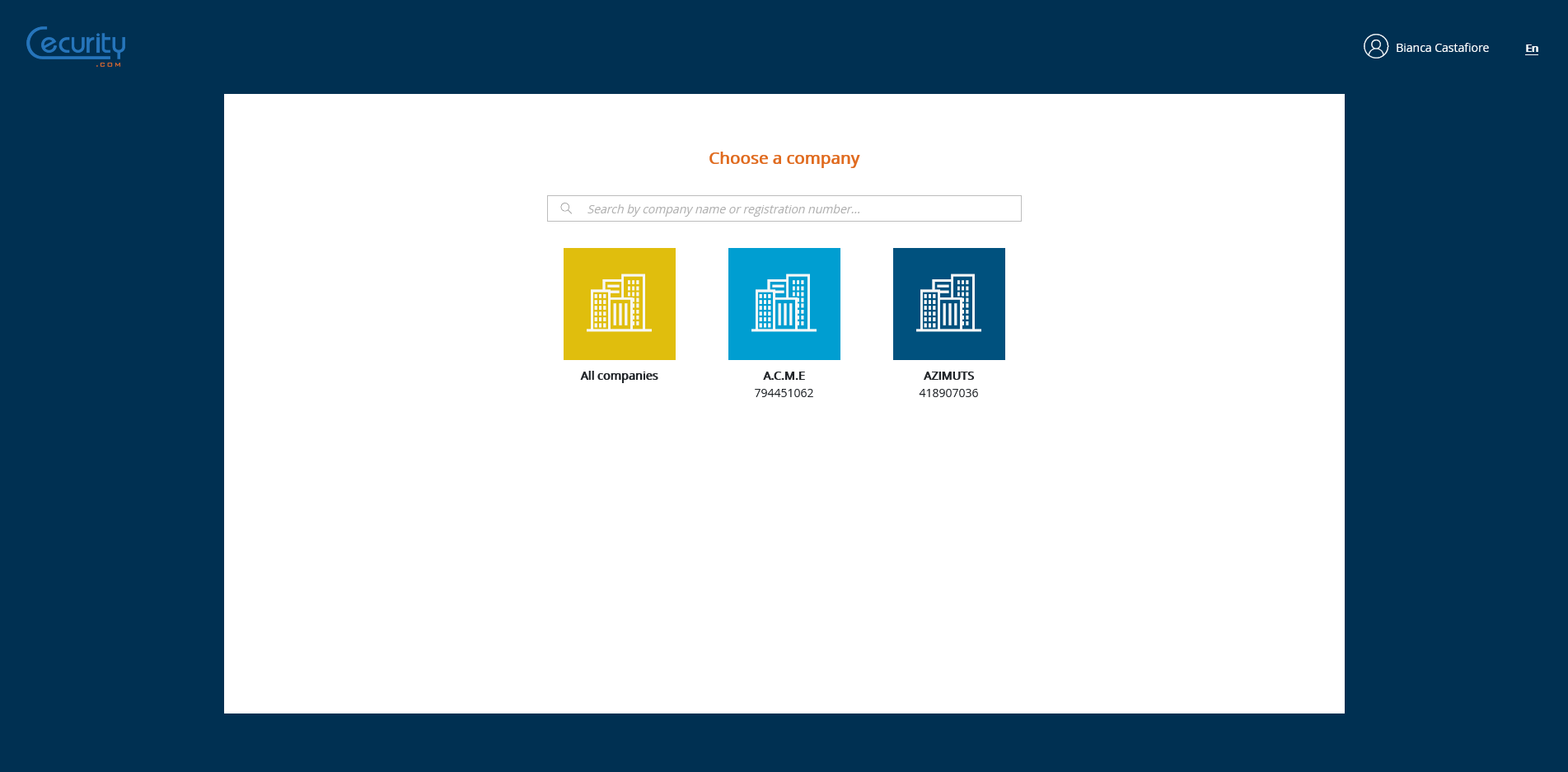
# Company selection module with multi-company
After clicking on the All Companies icon you will be redirected to a page with two modules: DROPZONE and FOLLOW-UP.
# Filing pay slips
The multi-company filing module works in the same way as the classic filing module, with the difference that it allows files relating to several companies to be filed at the same time.
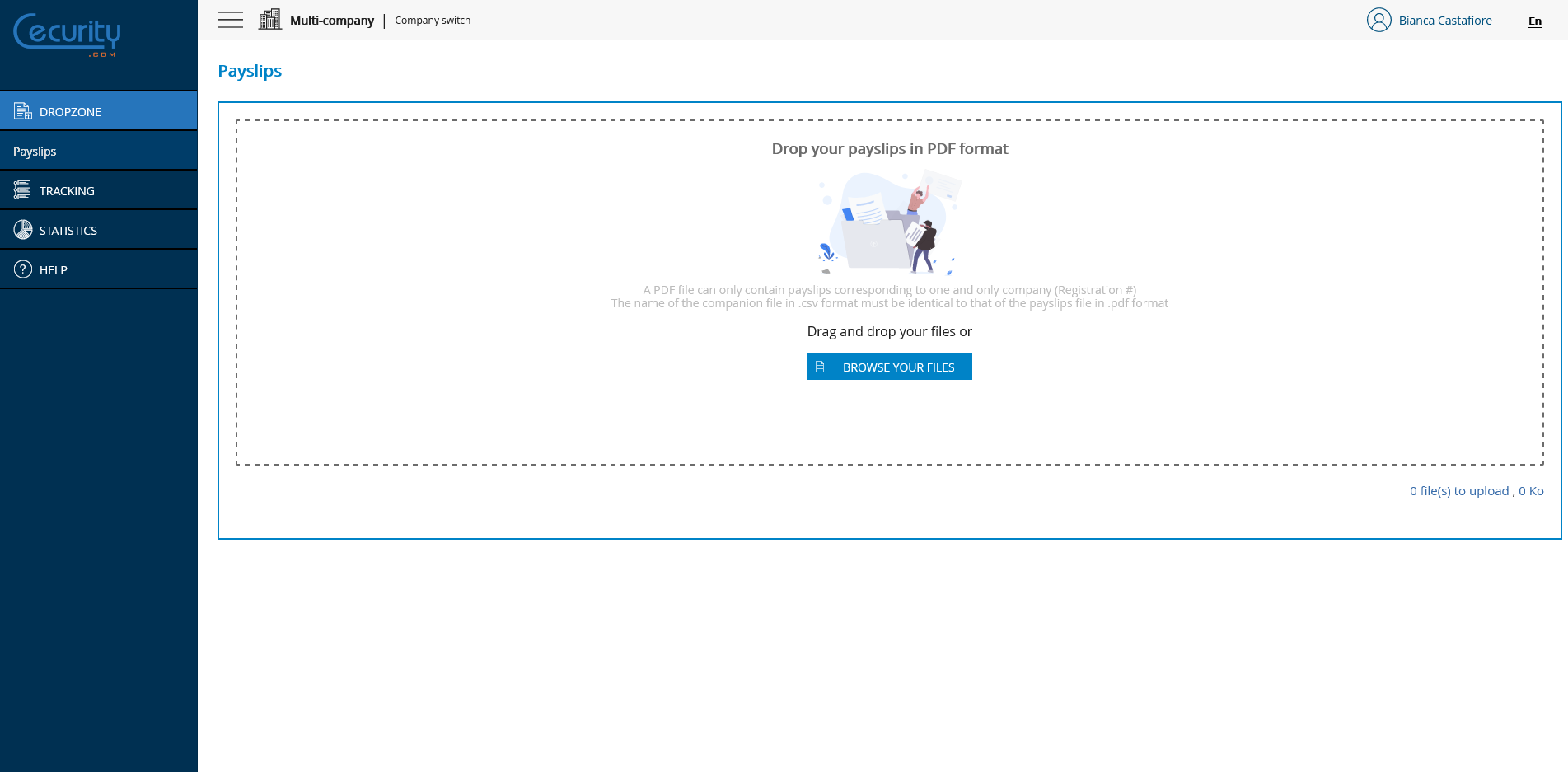
# Multi-company document filing module - adding files
To find the history of your filings, and to follow the progress of your flows, Go to the FOLLOW-UP module.
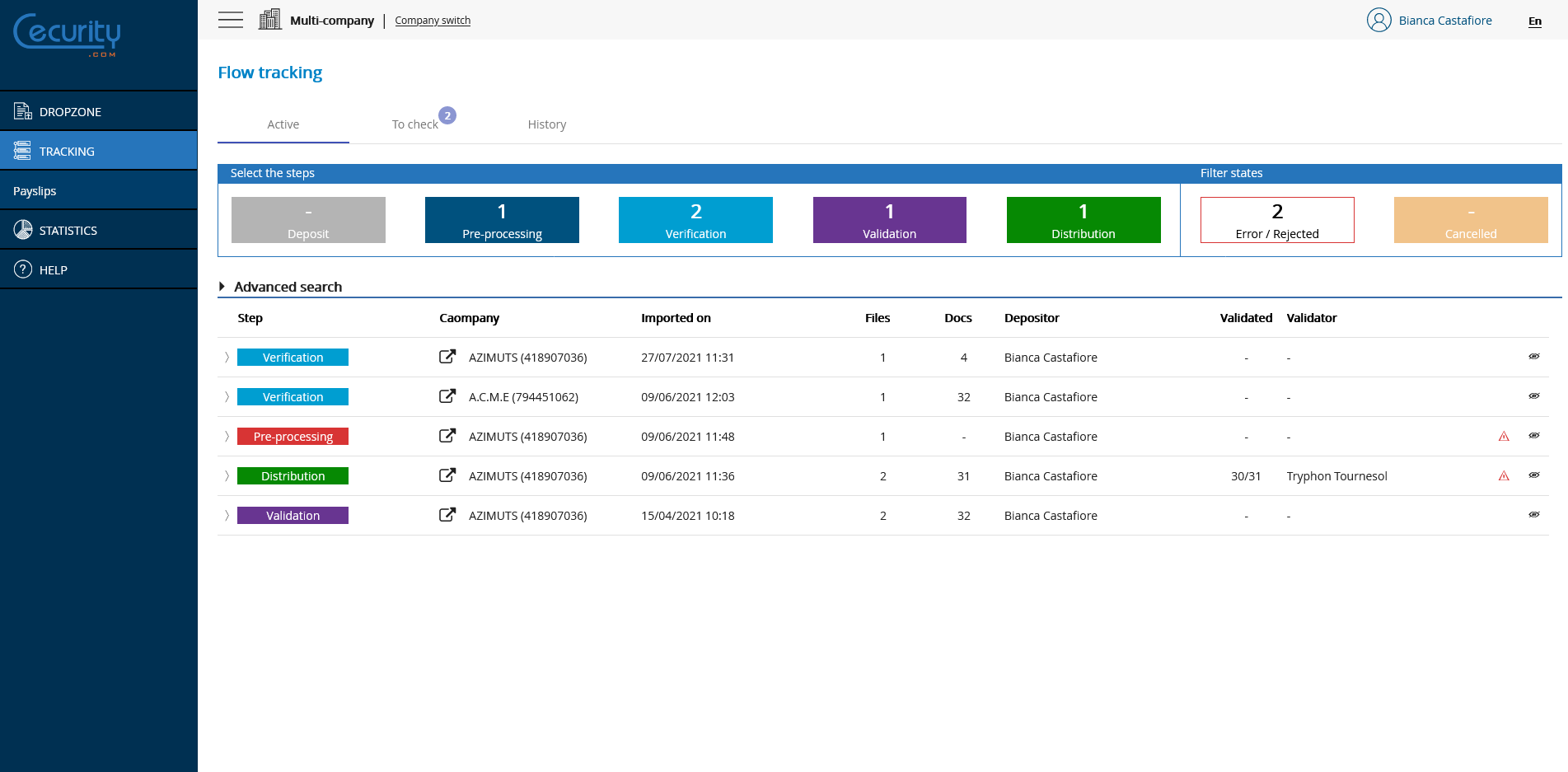
# Multi-company document deposit module - Flow monitoring
To learn more about how multi-SIREN monitoring works, go to FOLLOW-UP module: Monitoring of flows concerning several companies
# Filing of pay slips containing annexes
✔️ Pre-requisites
- The annex filing module must be activated in order to be used. To access this module, contact your administrator.
- The pay slips contained in the same PDF must all concern the same company.
- In order to be processed, the deposited flows must concern companies for which you have the right to deposit.
- The annexes contained in your payroll stream must immediately follow the payslip to which they are related.
- In order to be processed automatically, the annexes, just like the payslips, must follow a pre-defined model.
- There is also a possibility to manually deposit and attach appendices to pay slips Go to the section VERIFICATION to learn more.
# Filing annexes along with pay slips
✔️ Pre-requisites
In order for the annexes to be fully supported, you must have the annexes option on the concerned company. To benefit from this option, contact your administrator.
Once the prerequisites have been met, the deposit of the annexes contained in the payroll flow proceeds in exactly the same way as for a Standard deposit
After your feed has been successfully submitted and passed through the processing phase, it will go through an intermediate step called VERIFICATION. Go to the corresponding section to learn more.
💡 Reminder
The annex deposit module is compatible with the Multi-company deposit module.