
# Follow-up of payroll flows concerning a single company
💡 Reminder
The modules you have access to depend on the role assigned to you by your administrator. In order to access the tracking module, you must have the Folllow-up role enabled.
✔️ Pre-requisites
- To access the follow-up module, you must have the right to file documents on the concerned company. To access this module, contact your administrator.
To access the follow-up module, log in to the portal and click on the FOLLOW UP section.
This will take you to the Active tab of the follow-up page, which lists the flows that have been submitted and indicates their progress in the distribution process.
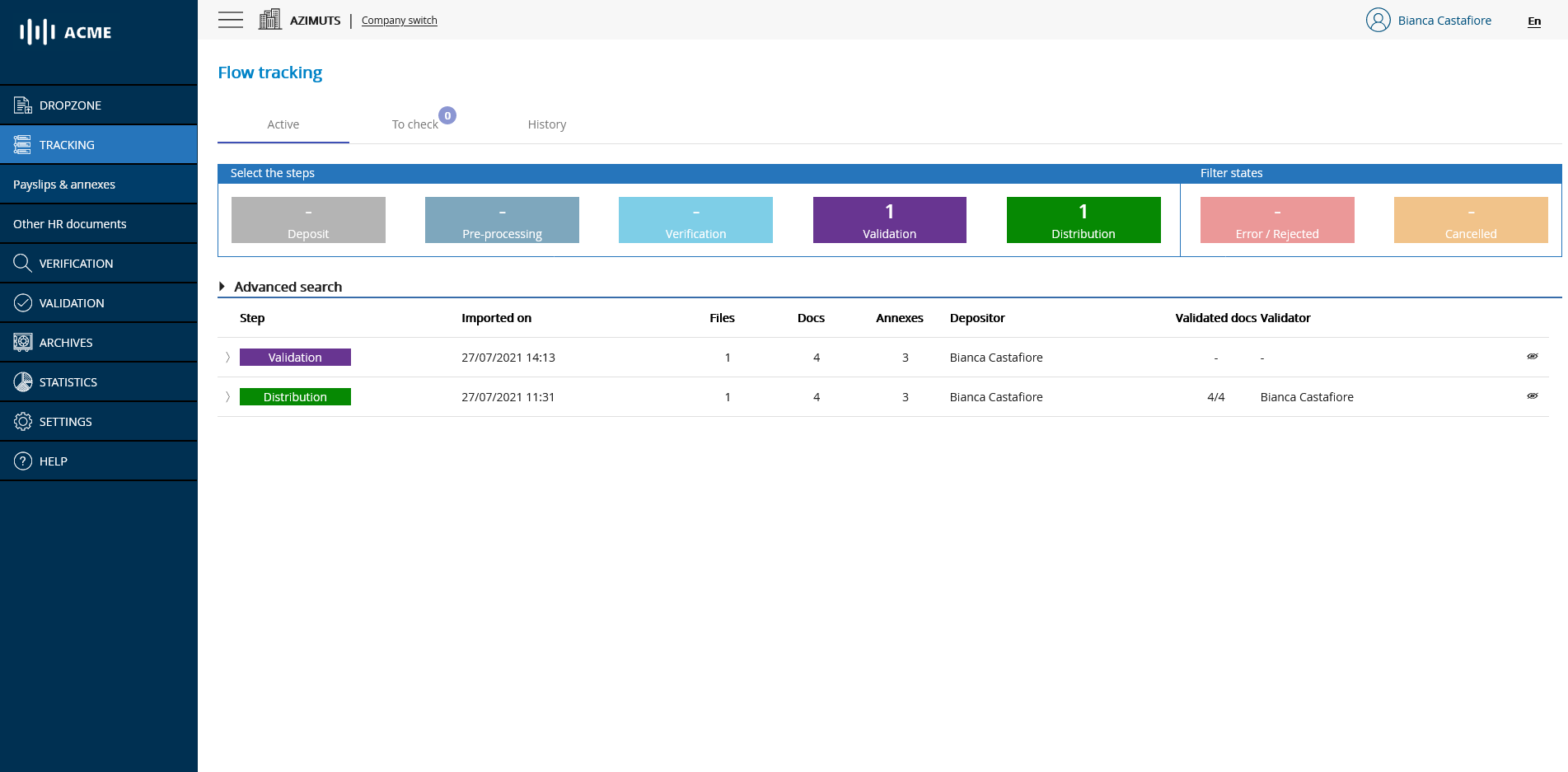
# Flow tracking screen - general view
# Import stage
When your feed is being imported, it appears in the follow-up module with the status IMPORTING and shows the following information:
- Stage (here, Import)
- Import date and time
- Number of files dropped off
- Submitter's name

# Flow Tracking Screen - Import
By scrolling the flow you can access the following information:
- List and weight of imported files

# Flow tracking screen - Import with details
# Preparation stage
When your flow is being imported, it appears in the tracking module with the status PREPARATION and shows the following information:
- Stage (here, Preparation)
- Import date and time
- Number of files dropped off
- Submitter's name

# Flow Tracking Screen - Preparation
By scrolling the flow you can access the following information:
- List and weight of imported files

# Flow Tracking Screen - Preparation with details
💡 Reminder
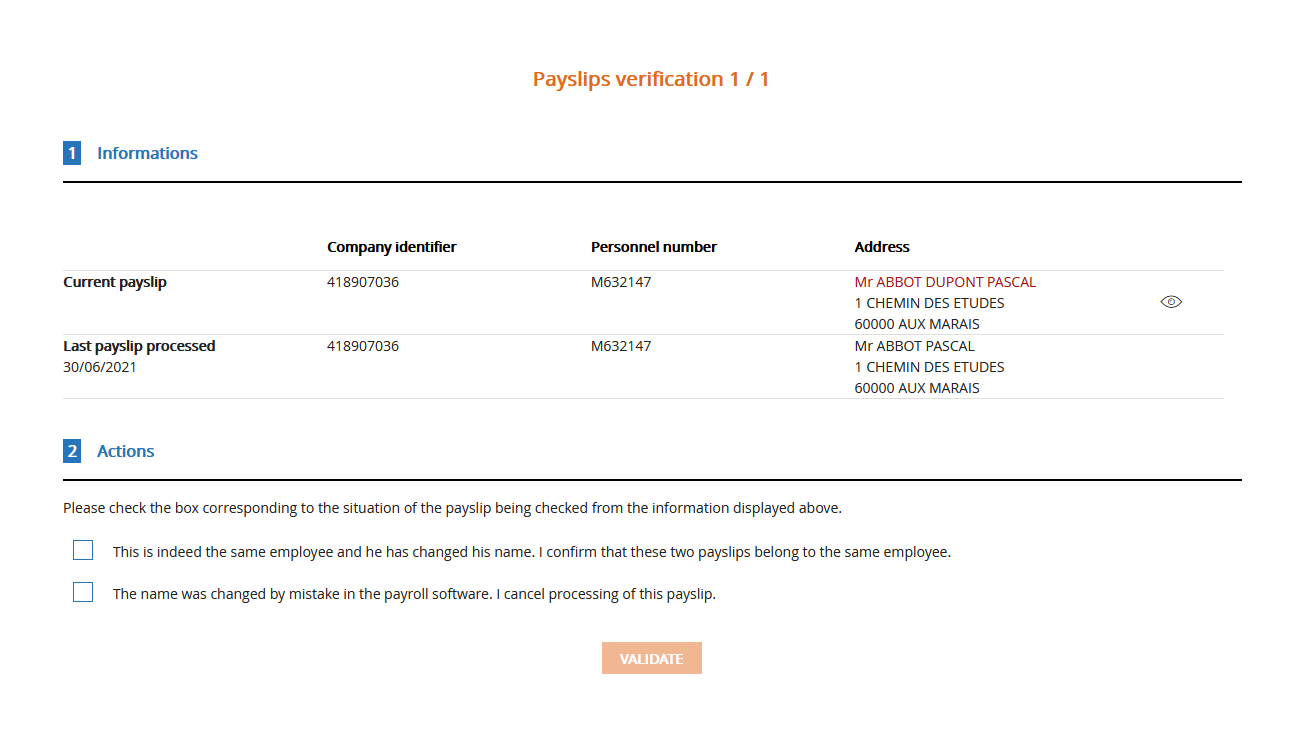
If the platform identifies a discrepancy in the name, title, address or personnel number of one or more employees compared to the last payslip processed for this employee, the flow will be put on hold for control and will be visible in the tab To check. You can then access the control interface and indicate to the platform the action to be taken:
- Directly from the tracking module by clicking on the link icon visible at the flow level or on the message by unfolding your flow

- From the password protected link sent by email.
# Verification stage
✔️ Pre-requisites
- This step is only accessible if the verification module is activated. To access this module, contact your administrator.
When your feed is being verified, it appears in the follow-up module with the status VERIFICATION and shows the following information:
- Stage (here, Verification)
- Import date and time
- Number of files dropped
- Number of documents identified in the dropped files
- Filer name

# Flow Tracking Screen - Verification
By unrolling the flow we access the following information:
- List of documents identified with :
- Personnel number
- Last name
- First name
- Pay period start and end dates
- Distribution status
- Comment (in case of validation rejection)
- Search filters
- Preparation end date and time
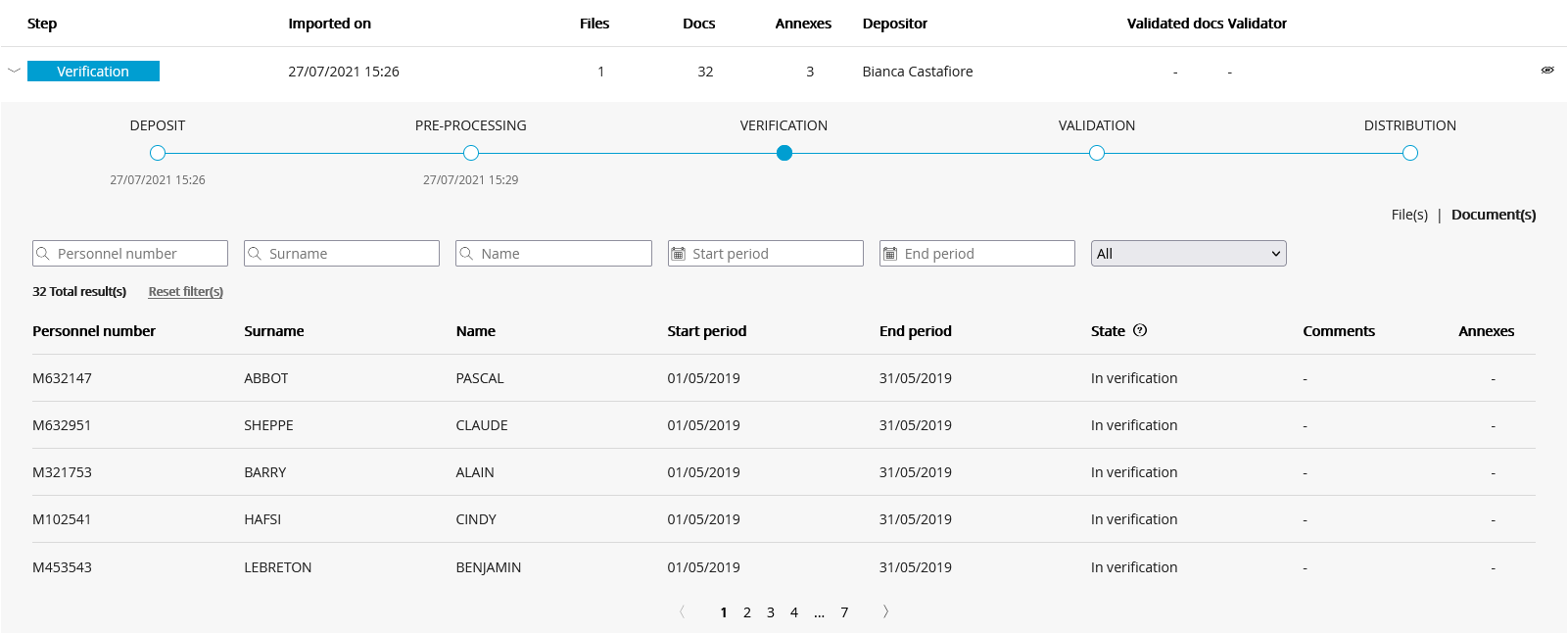
# Flow Tracking Screen - Verification with details
# Validation stage
When your flow is being validated, it appears in the tracking module with the status VALIDATION and shows the following information:
- Stage (here, Validation)
- Import date and time
- Number of files submitted
- Number of documents identified in the submitted files
- Submitter's name

# Flow Tracking Screen - Validation
By unrolling the flow we access the following information:
- List of documents identified with :
- Personnel number
- Last name
- First name
- Pay period start and end dates
- Distribution status
- Comment (in case of validation rejection)
- Search filters
- Preparation and verification end date and time (if activated)
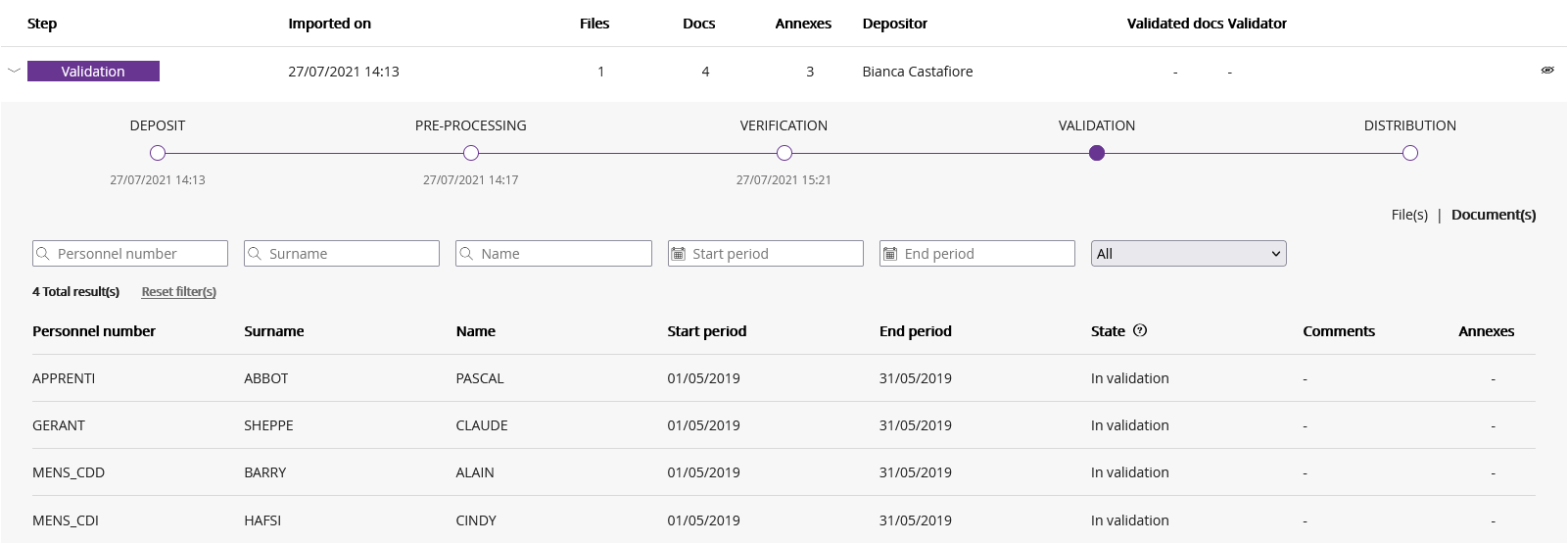
# Flow tracking screen - Validation with details
# Distribution stage
💡 Reminder
Below is a description of each of the statuses associated with the documents in the distribution stage
| Status | Description |
|---|---|
| Accepted in validation | Document accepted in the validation phase |
| Distributed | Document whose distribution has been completed |
| In validation | Document awaiting validation |
| In verification | Document awaiting verification |
| In distribution | Document in the process of being distributed |
| In error | Document for which an error has been encountered |
| Rejected in validation | Document rejected in validation phase |
When your flow is in the process of being distributed, it appears in the tracking module with the status DISTRIBUTION and presents the following information:
- Stage (here, Distribution)
- Import date and time
- Number of files dropped
- Number of documents identified in the dropped files
- Filer name
- Name of validator

# Flow Tracking Screen - Distribution
By unrolling the flow we access the following information:
- List of documents identified with :
- Personnel number
- Last name
- First name
- Pay period start and end dates
- Distribution status
- Comment (clickable "bubble" icon in case of validation rejection)
- Search filters
- Date and time of end of preparation, verification (if activated), validation and distribution
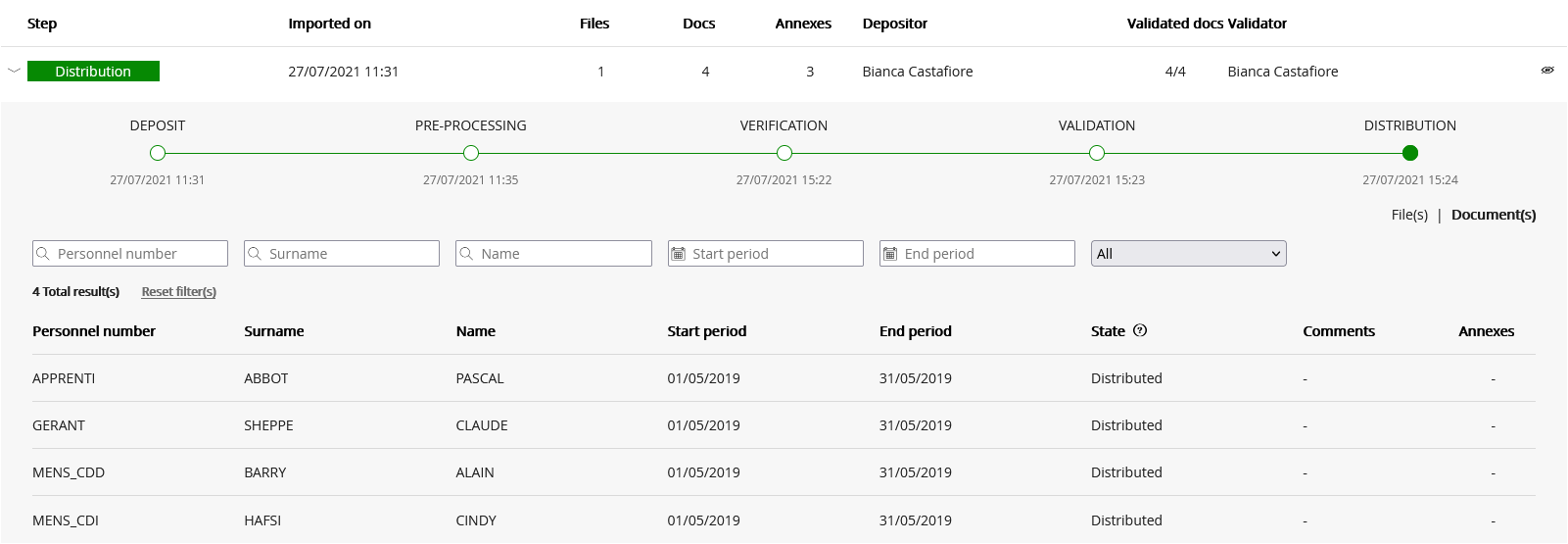
# Flow Tracking Screen - Distribution with details
# Visualizing a document
It is possible to view a document directly from the follow-up ( as well as from the validation or verification stage if these are activated) by clicking on the line corresponding to the file.
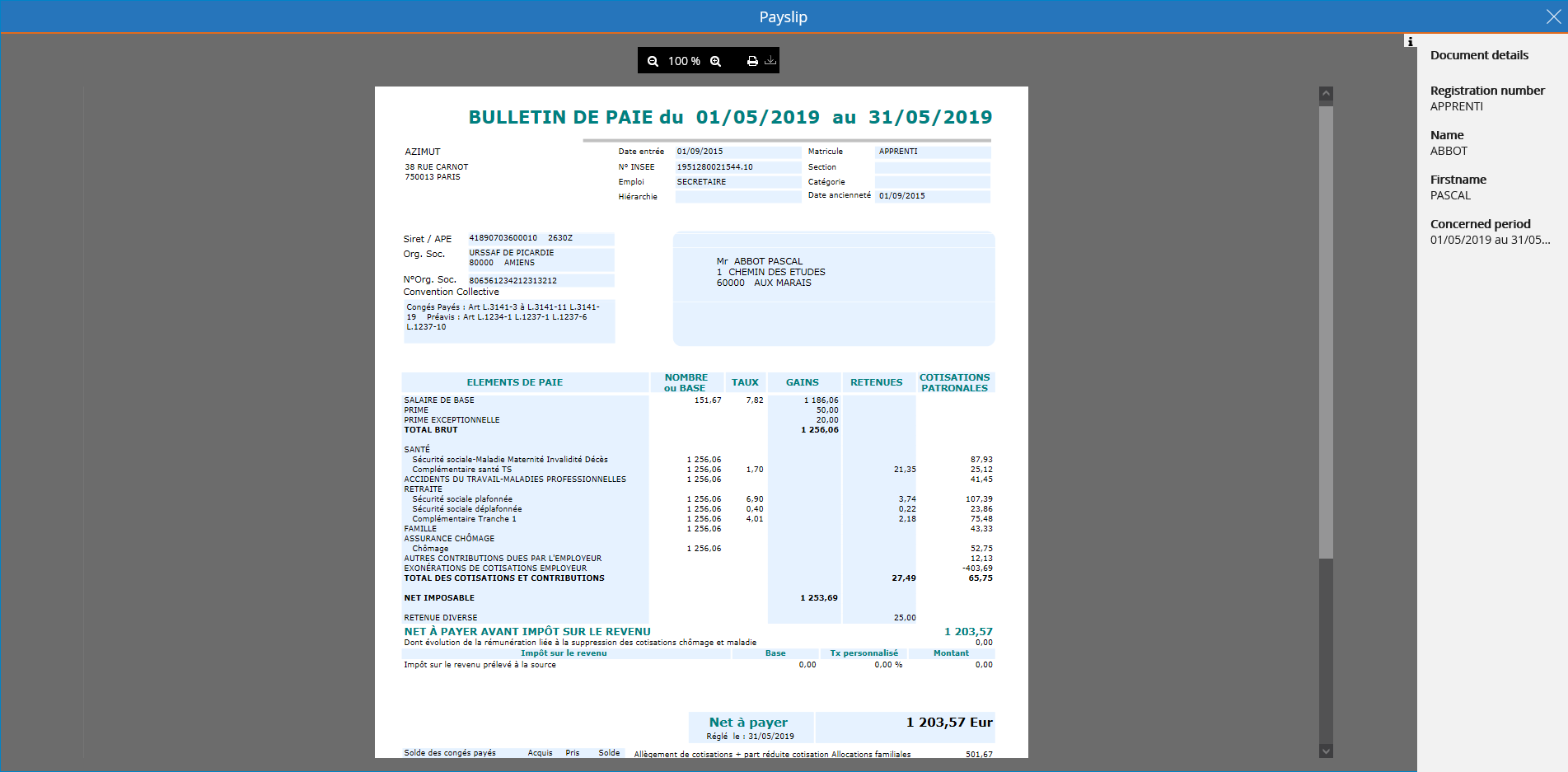
# Flow monitoring screen - Viewing a document
💡 Remember
Once the preparation stage is over, it is possible to view the list of files deposited by clicking on File view after having scrolled the flow. To go back to the document view, you just have to click on Document view.
# Error management
When an error occurs in the processing of your flow, you will receive an alert by email as well as in the tracking module. In the tracking module, a step in error takes on a red color and is present in the tab To check in addition to the tab Active.

# Flow monitoring screen - Preparation error
By scrolling down the relevant stream you will get information on when the error occurred, the type of error encountered, and, where possible, a resolution path.
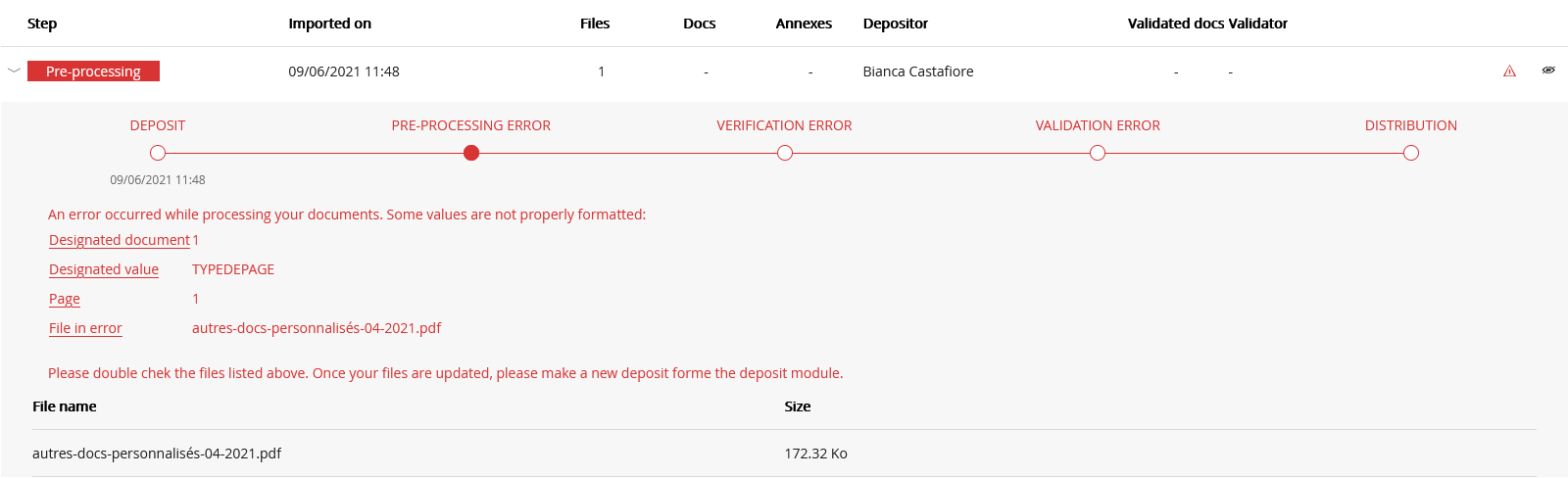
# Flow tracking screen - Error details
# Search by filters
You can search by filters to find a particular stream or group of streams by clicking on the corresponding Step and Status tiles.
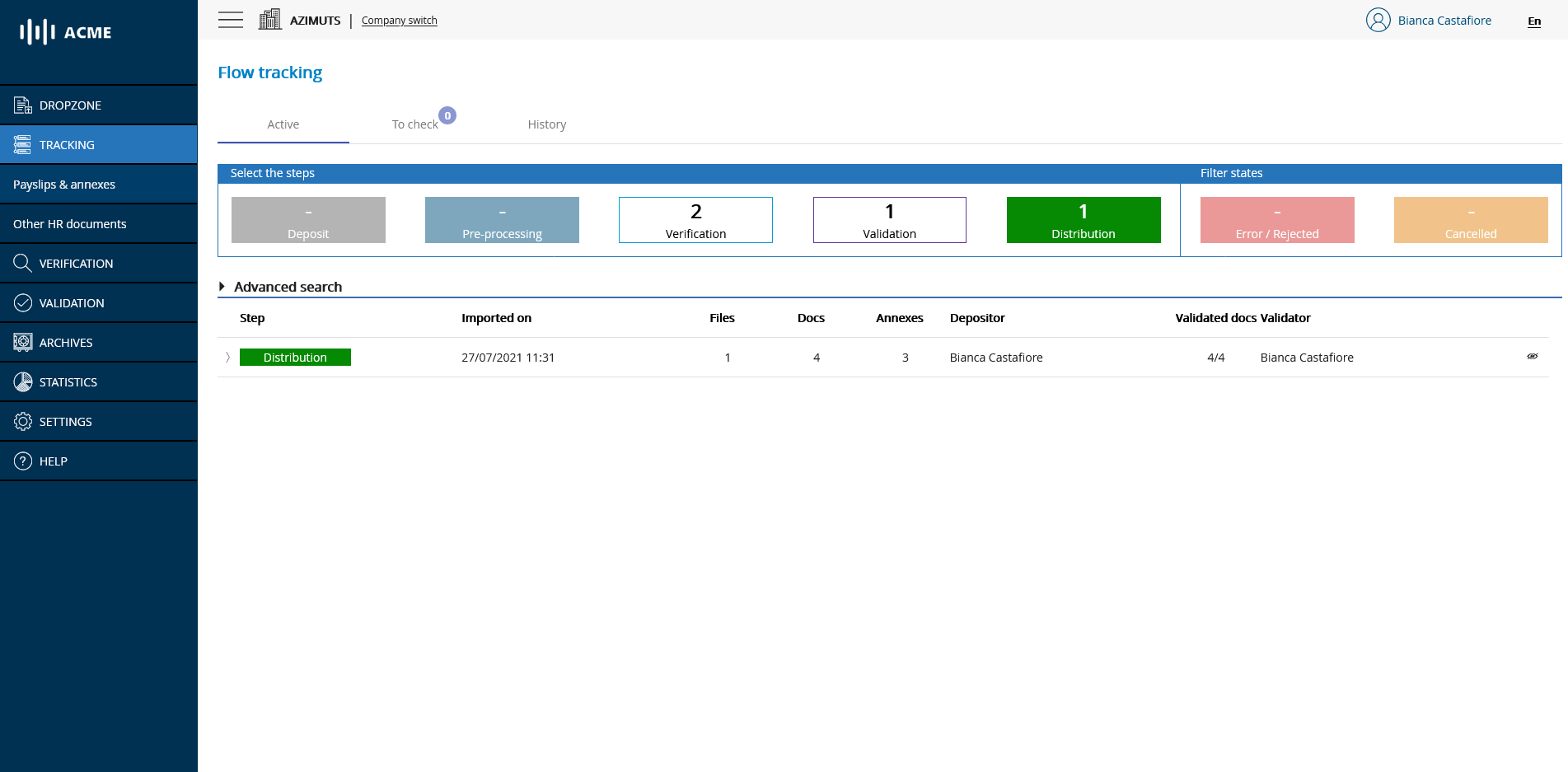
# Flow tracking screen - Search by filters
# Advanced research
You can perform an advanced search by unfolding the advanced search menu and filling in the fields corresponding to your search.
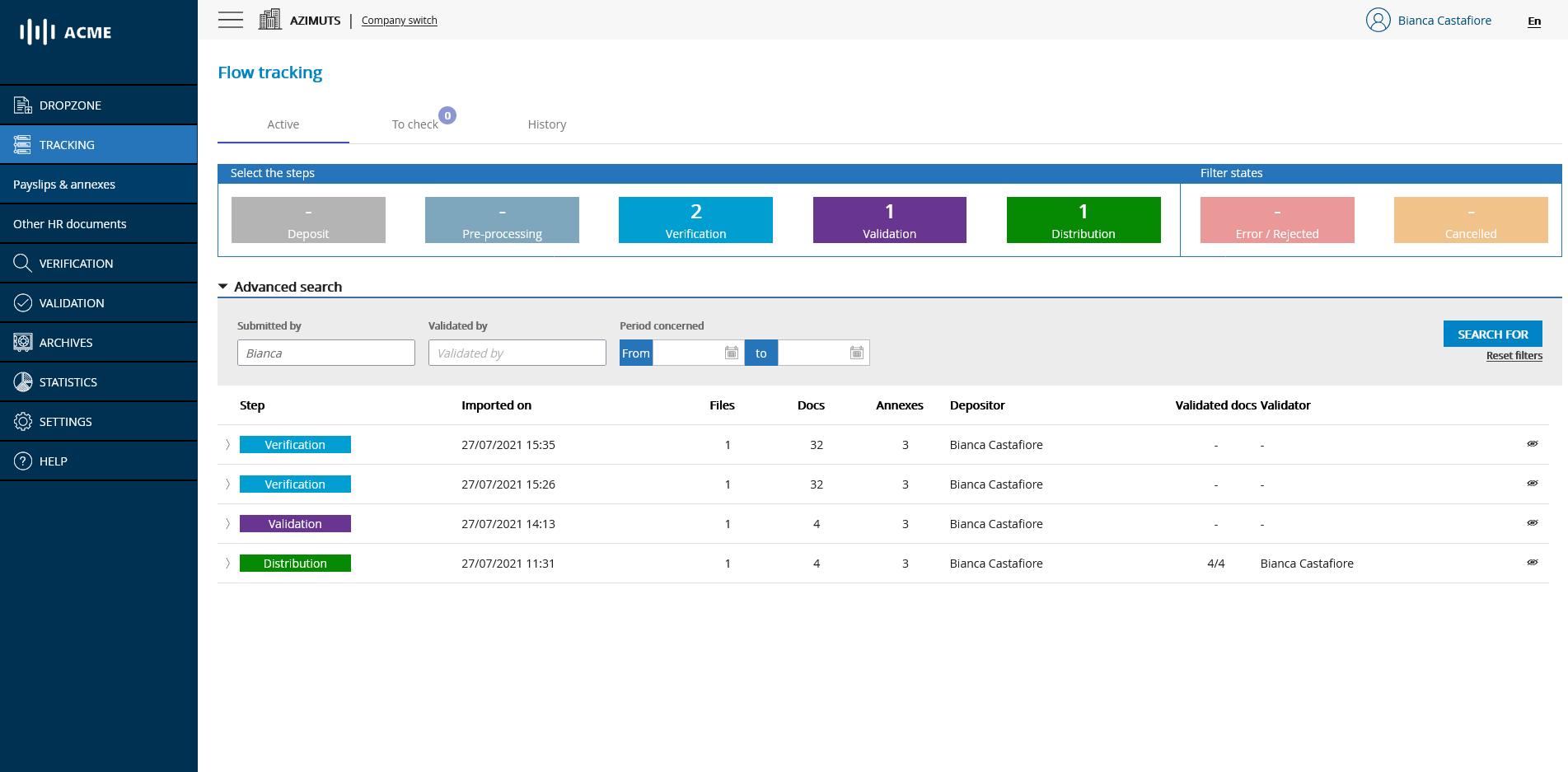
# Flow Tracking Screen - Advanced Search
# Direct access to flows that need to be controlled
Flows requiring a check on your part are flows entered in error during processing (step and symbol ⚠ in red) or flows for which one or more documents were rejected during the validation phase (symbol ⚠ in red) are automatically grouped together in the To check tab of the monitoring module.
A badge indicating the number of flows present in the To control tab allows you to see at a glance the number of flows remaining to be controlled.
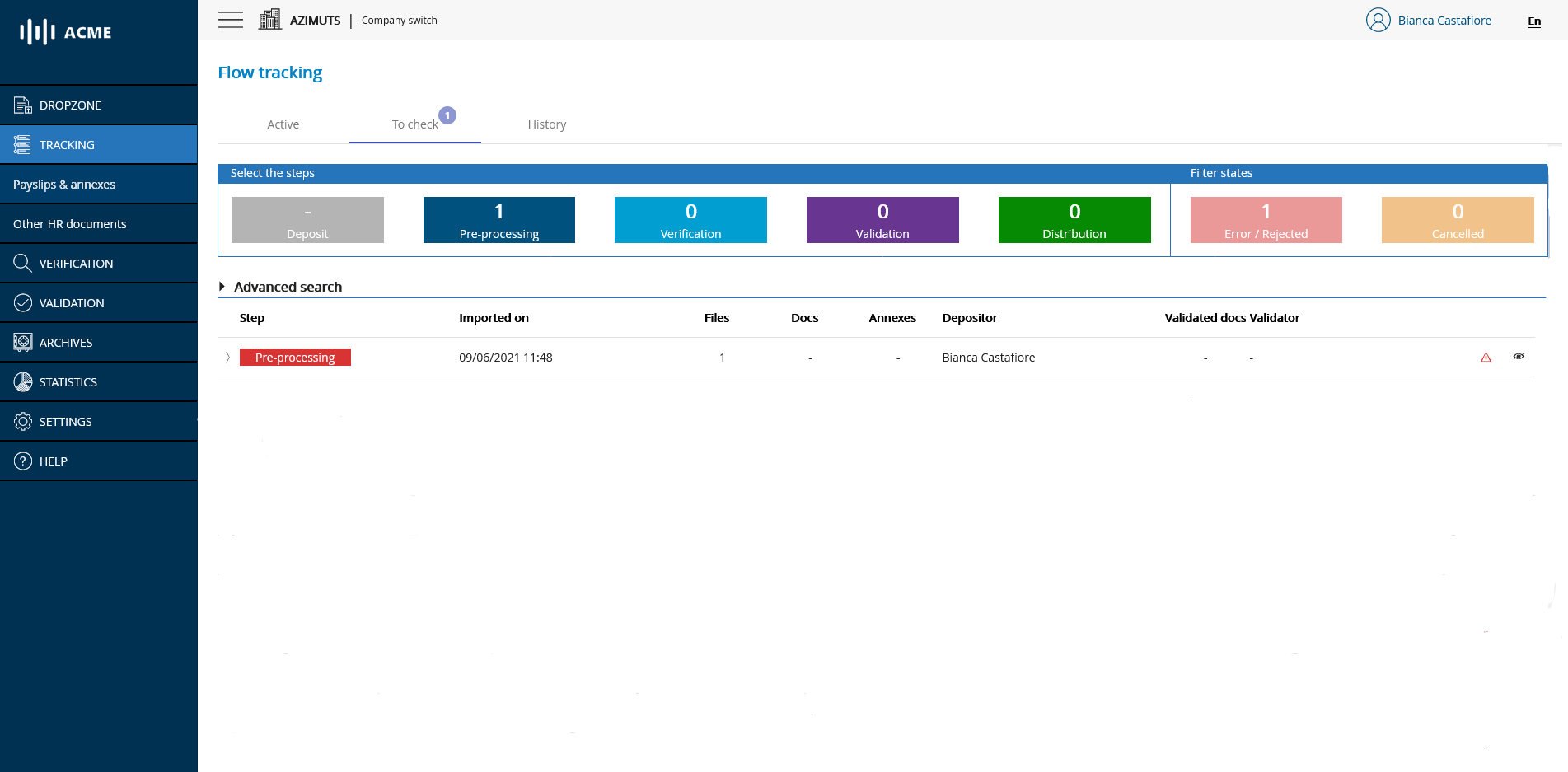
# Flow monitoring screen - Flows to control
# Moving flows to the history
As you use the solution, feeds will accumulate in your Active and To Monitor tabs. Once you have monitored these feeds, you have the option to move them to the History tab by clicking on the 👁 icon. You will find them again by going to the History tab and will have the option to restore them to the To Monitor and/or Active tabs by clicking on the 👁 icon.
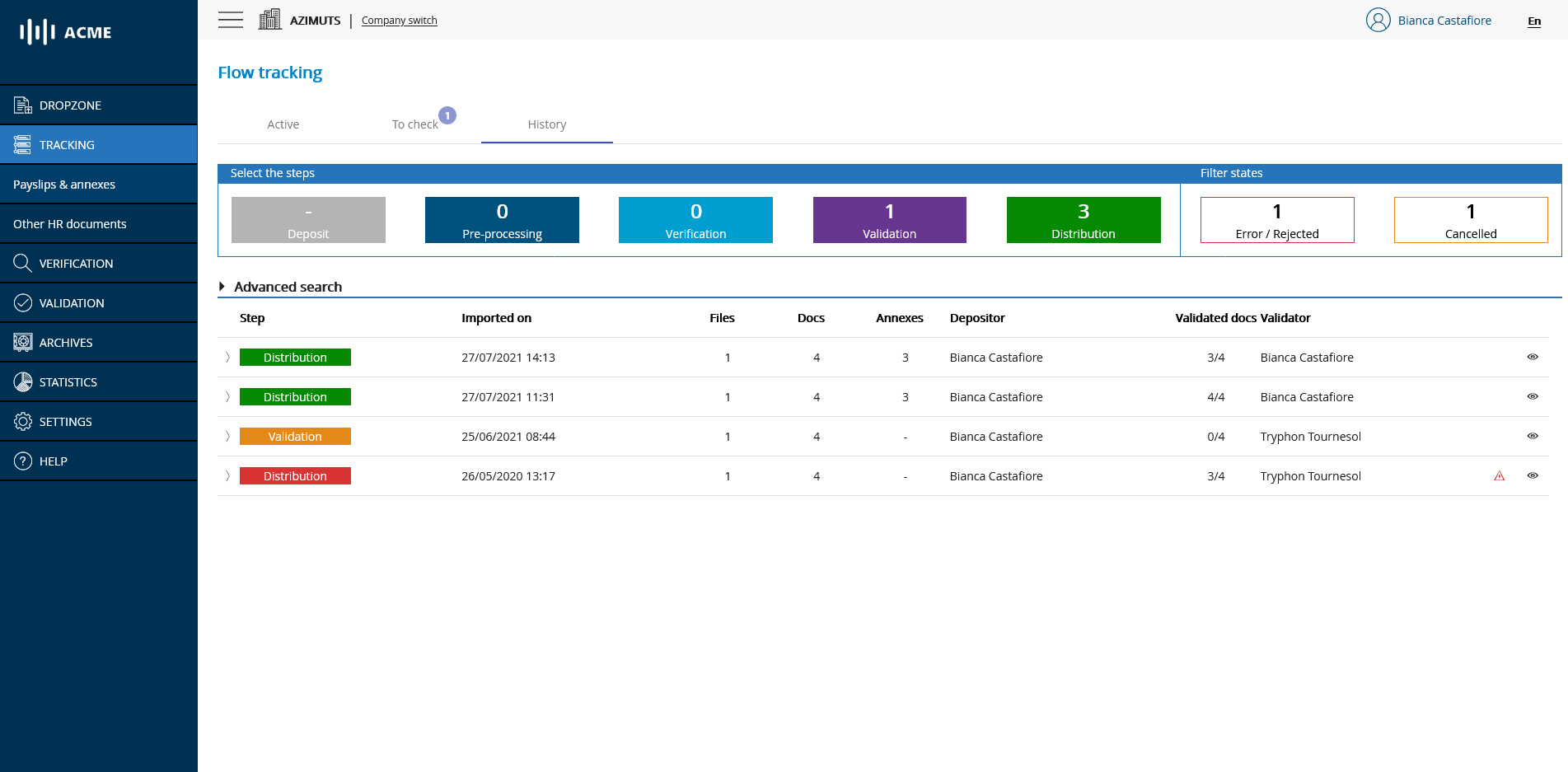
# Flow tracking screen - Flows put in history
# Follow-up of flows concerning several companies
✔️ Pre-requisites
- The multi-company repository module must be activated to be used. To access this module, contact your administrator.
- To access the follow-up module, you must have the right to file on the company concerned. To access this module, contact your administrator.
The follow-up of the flows concerning several companies takes place in two phases
# Phase 1: Identification of flows
Initially, your flows deposited from the multi-company module must be identified. During this first phase, the entire flow will appear in gray and will be indicated as a multi-company flow while it is being analyzed.

# Flow monitoring screen - Multi-company monitoring
# Phase 2: Individualized flow monitoring
Once your multi-company flow has been analyzed, the global grey flow will be transformed into as many flows as there were companies involved in this flow.
For example, if you had submitted 2 PDF files concerning two different companies. Once your feed corresponding to a multi-company submission has been analyzed, it will be transformed into two feeds: one for each SIREN, each of which will now be monitored and analyzed individually.

# Flow tracking screen - Post-analysis multi-company tracking
💡 Reminder
- Once identified, the feeds keep the same import time as the initial feed.
- To access the company page for a feed, simply click on the icon to the left of its name.